


Logiline| Logistic CRM system - Site page "Trucks"
The “Trucks” page is designed to track and add new trucks for providing transportation services. To open the page, go to the “Equipment and Drivers” menu; from the dropdown that opens when you click the button  , select the “Trucks” tab. You will then be taken to a page where you can view trucks, manage their records, and add new ones if necessary.
The “Trucks” page contains a search bar, filters for specified parameters, a page switcher, and a table displaying the full list of trucks with all relevant information. This includes data such as name, registration number, state, ownership, driver, and more (Figure 1).
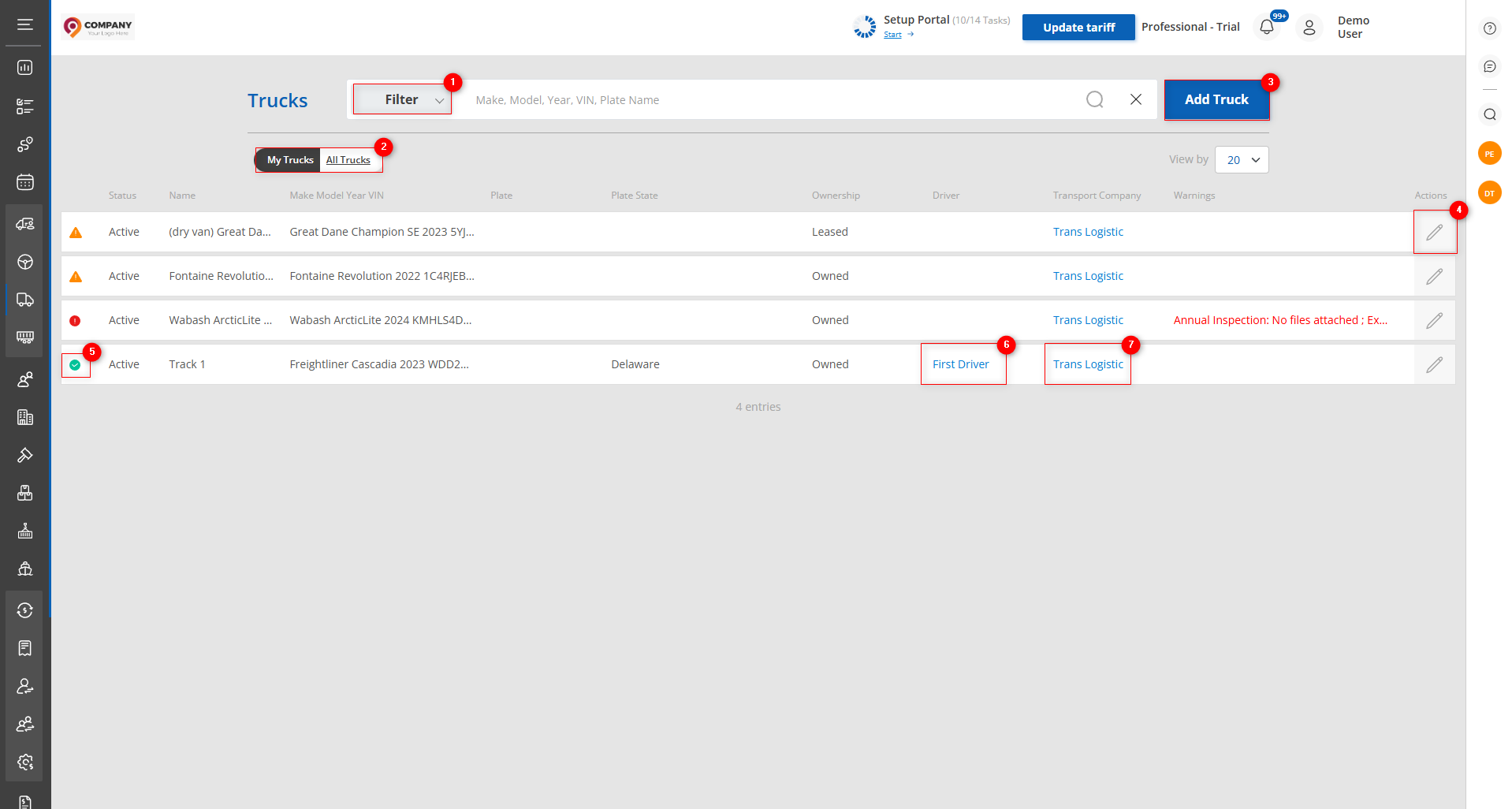 Figure 1 - Site page“Trucks”
Search
Search by specified parameters:
When you click the “Filter” button (Figure 1, Pointer 1), the filter window opens, which is used to set search parameters (Figure 2):
- “Name” — enter the required value;
- “Transport company” — from the dropdown list that opens when you click the button
 , select the transport company the truck belongs to;
 - “Plate state” - from the dropdown list, select the plate state;
- “Status” — from the dropdown list, select the truck status;
- “Document status” — from the dropdown list, select the truck’s ownership status;
- “Document status” — from the dropdown list, select the truck’s document status.
Note: You can set one or several parameters to perform the search.
After entering the parameters, click the button  .
.
The table will then display data that matches the filter parameters you set.
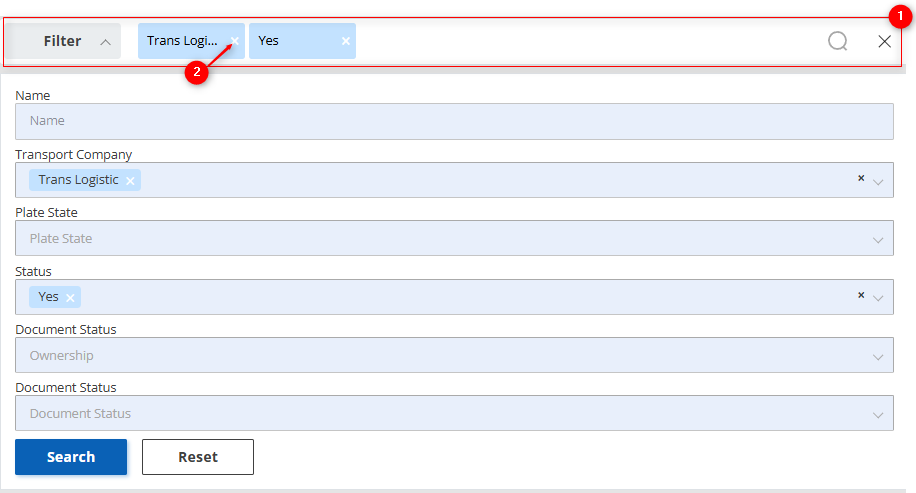 Figure 2 - “Filter” window
Search in the search bar:
The search bar allows you to search by any parameter (Figure 2, Pointer 1). To do this, enter any query and click the search button  located in the search bar or press the “Enter” key on your keyboard. The records matching the entered parameters will be displayed in the table.
To clear the entire search and reset the filter, click the clear button  . If you need to remove one of the parameters, click the cross located in the query field itself (Figure 2, Pointer 2).
On the “Trucks” page there is a toggle (Figure 1, Pointer 2) to choose the display mode: “My trucks” (only the trucks you work with) or “All trucks”. This provides a convenient way to quickly find and manage information about a transport company’s trucks.
Trucks table
The table displays information for each truck of the transport company. Below is a description of the main fields:
- “Status”;
- “Name”;
- “Make, model, year, VIN”;
- “Plate”;
- “Plate State”;
- “Ownership”;
- “Driver”;
- “Transport company”;
- “Warnings”;
Note: Clicking the icon at the beginning of the row (Figure 1, Pointer 5) will show the status details for all of the truck’s documents.
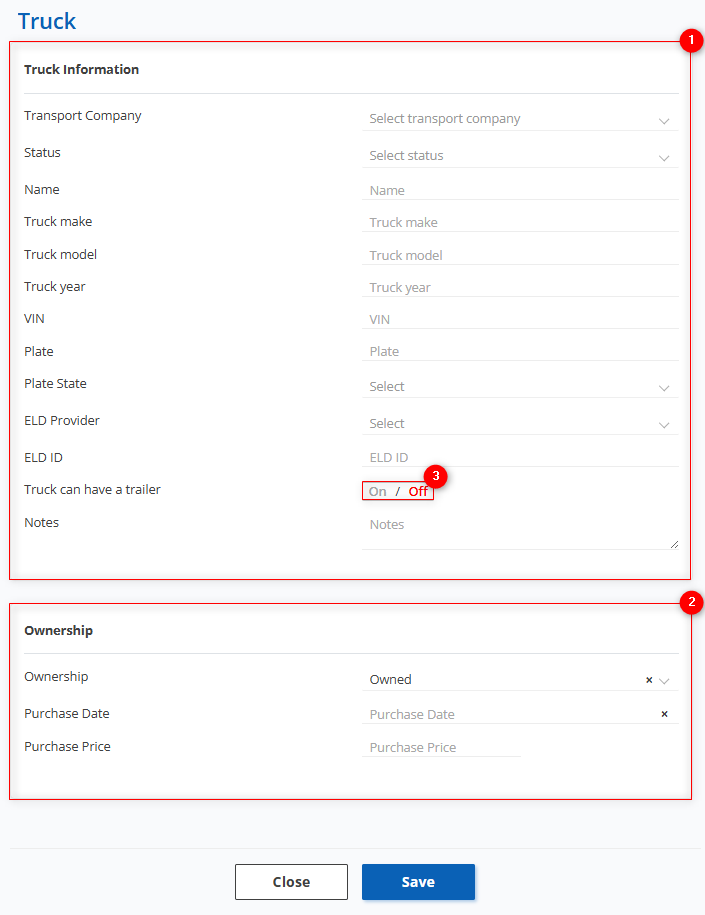 Figure 3 - “Truck” window
Add a truck
To add a truck, click the “Add Truck” button (Figure 1, Pointer 3). Then the “Truck” window will open, which consists of 2 information blocks.
Block “Truck information” (Figure 3, Pointer 1)
- “Transport company” — from the dropdown that opens when you click the button
 , select the required transport company;
 - “Status” — from the dropdown, select the truck’s activity status;
- “Name” — enter the required value;
- “Truck make” — enter the required value;
- “Truck model” — enter the required value;
- “Truck year” — enter the required value;
- “VIN” — enter the required value;
- “Plate” — enter the required value;
- “Plate State” — from the dropdown, select the required registration state;
- “ELD provider” — from the dropdown, select the required provider;
- “ELD ID” — enter the required value;
- “Truck can have a trailer” — use the toggle (Figure 3, Pointer 3) to choose the required value;
- “Notes” — enter the required value.
Block “Ownership” (Figure 3, Pointer 2)
If you select “Owned” in the “Ownership” field, the following fields appear for completion:
- “Purchase date” — when you click the empty field, select the truck’s purchase date;
- “Purchase price” — enter the required value.
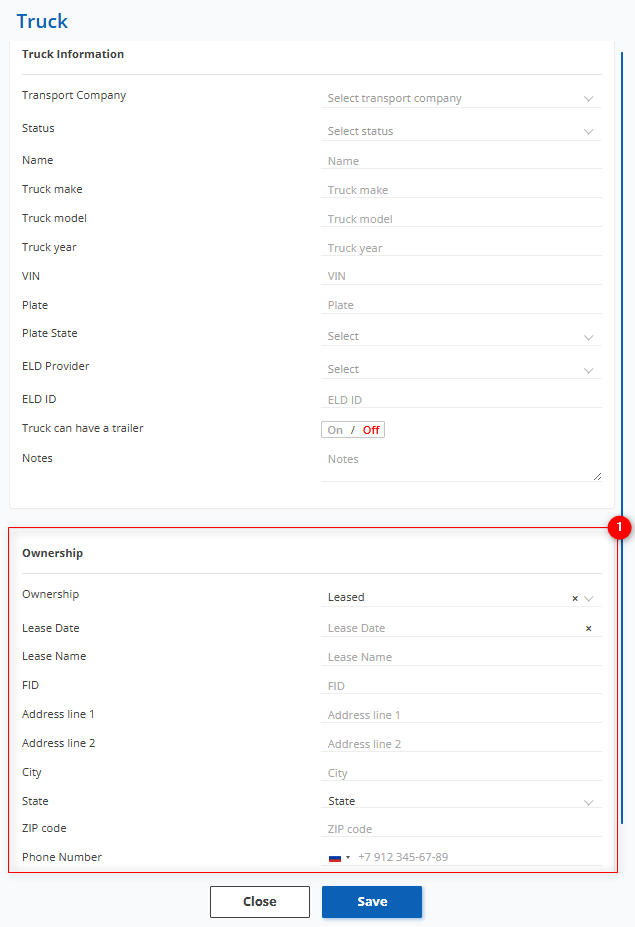 Figure 4 - Continuation of the “Truck” window
If you select “Leased” in the “Ownership” field (Figure 4, Pointer 1), the following fields appear for completion:
- “Lease date” — when you click the empty field, select the lease start date;
- “Lease name” — enter the required value;
- “FID” — enter the required value;
- “Address line 1” — enter the required value;
- “Address line 2” — enter the required value;
- “City” — enter the required value;
- “State” — from the dropdown that opens when you click the button
 , select the required state;
 - “Zip code” — enter the required value;
- “Phone number” — enter the required value.
To save the data, click the “Save” button; to exit the add window, use the “Close” button.
After adding a new truck it will appear in the table (Figure 1), from where you can conveniently navigate to related information:
Clicking the driver (Figure 1, Pointer 6) opens a window with the driver’s full information, allowing you to edit the data.
Clicking the transport company (Figure 1, Pointer 7) opens the company window with its deals, companies, users, drivers and other information, providing the ability to edit the data.
Editing truck information
To edit a truck’s information, select the required record in the table and click the edit button  (Figure 1, Pointer 4). This will open the edit window, which includes 2 blocks in the first section “General” and 4 blocks in the second section “Documents” (Figure 5, Figure 6).
- Section “General”
To make fields editable, click the "Edit" button (Figure 5, Pointer 1); after that you can make changes to the data in the same way as when they were initially created (see above).
This section contains 2 blocks: “Truck information” (Figure 5, Pointer 2) and “Ownership” (Figure 5, Pointer 3) — and has the same fields to fill in as when adding a new truck.
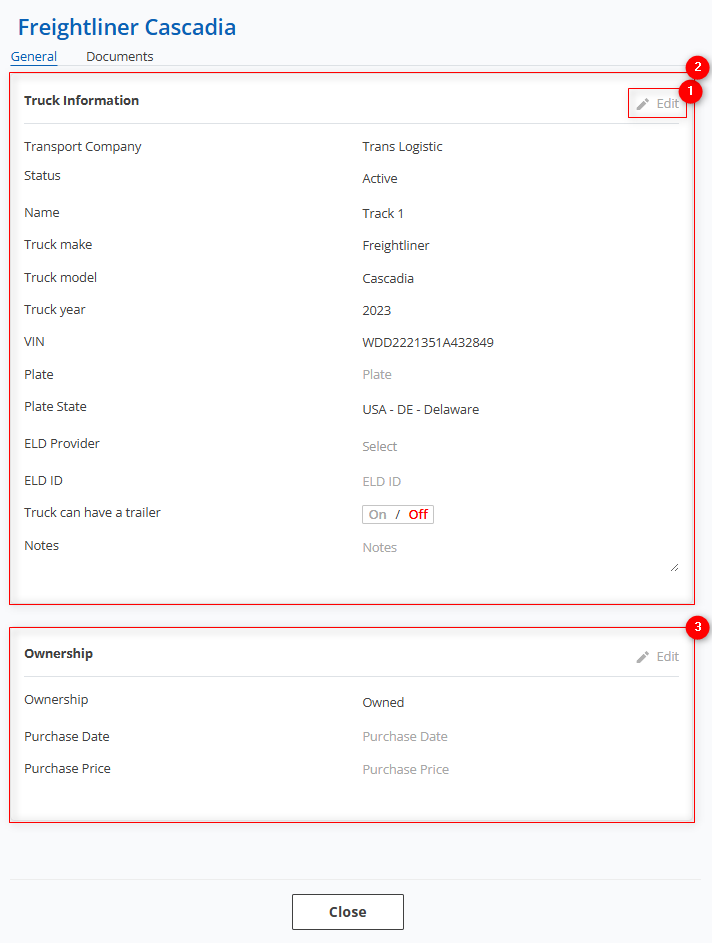
Figure 5 - Edit window (Section “General”)
- Section “Documents”
Note: The “Documents” section is available only when editing; it is not present when adding a new truck.
The section consists of 4 blocks, each filled in the same way. When you click the button  in a block, a row with an “Add” button will drop down (Figure 6, Pointer 1). Clicking that “Add” button makes a row with the corresponding fields available for editing.
Block “Annual inspection” (Figure 6, Pointer 3)
- “Issue date” — when you click the empty field, select the inspection report issue date;
- “Expire date” — when you click the empty field, select the inspection report expiration date;
Block “Registration” (Figure 6, Pointer 4)
- “Issue date” — when you click the empty field, select the registration issue date;
- “Expire date” — when you click the empty field, select the registration expiration date.
Block “Repairs and maintenance” (Figure 6, Pointer 5)
- “Issue date” — when you click the empty field, select the issue date;
- “Expire date” — when you click the empty field, select the expiration date;
- “Name” — enter the required value;
- “Notes” — enter the required value;“
Block “Other” (Figure 6, Pointer 6)
- “Issue date” — when you click the empty field, select the issue date;
- “Expiration date” — when you click the empty field, select the expiration date;
- “Name” — enter the required value;
- “Notes” — enter the required value.
To save changes made in each block, use the button  located in the “Action” field; to cancel changes, use the cancel button
  .
.
After saving changes, when you reopen the row a button  will appear at the end; clicking it will reveal buttons to save and cancel changes and an additional button
  to delete the row.
Note: The “Attachments” field is in the drop‑down row of each block. By clicking the “Upload” button (Figure 5, Pointer 2) you can upload photos from your computer; if necessary, you can upload several photos one after another.
Note: The icon on the left changes depending on the document status:
 — indicates no issues with the documents;
 — less than 14 days remain until the documents expire;
 — documents are expired and need replacement.
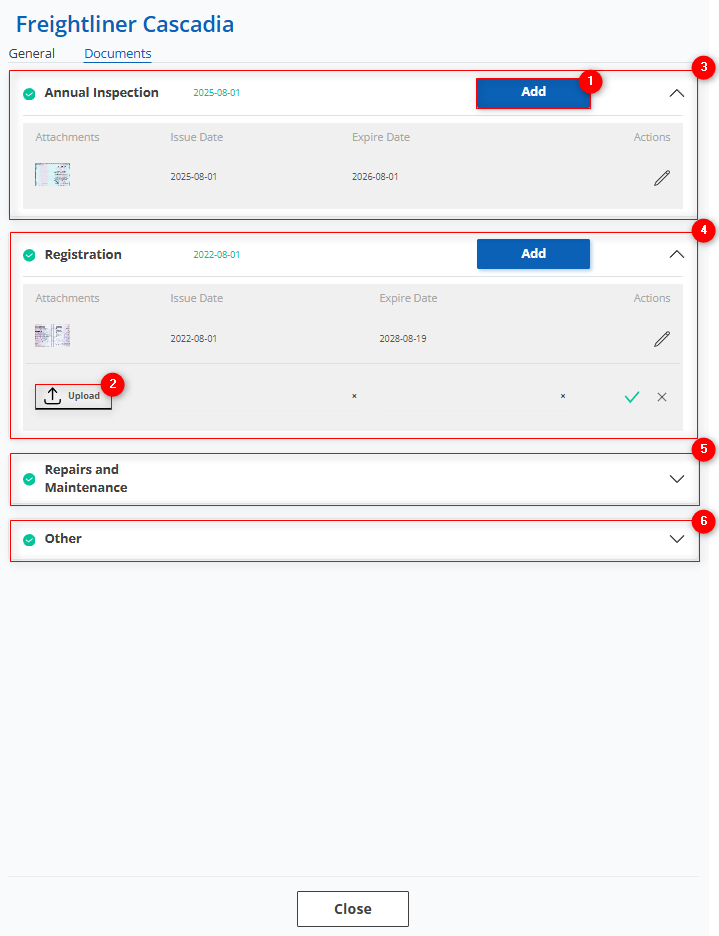
Figure 6 - Continuation of the edit window (Documents section)