


Logiline| Logistic CRM system - How to create an auction integration?
To create an integration with the auction, go to the “Settings” menu and open the “Auction account” section. After that, you will be redirected to the account management page where you can create, edit, or delete an auction account.
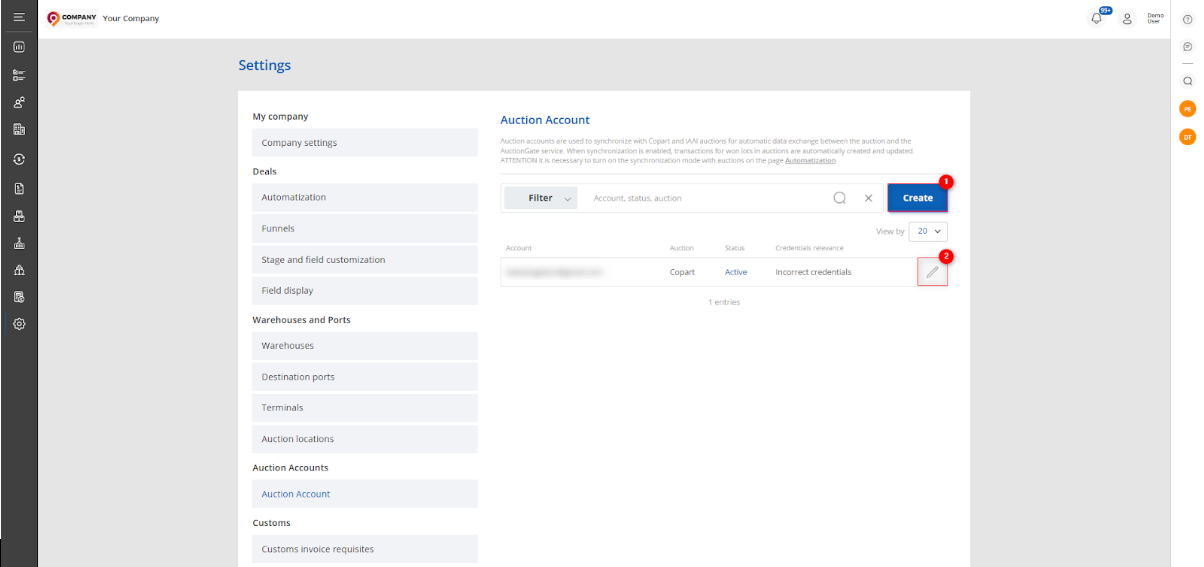 Figure 1 – “Auction account” page
To add an auction, click the “Create” button (Figure 1, Pointer 1). In the window that appears, enter your auction authorization details by filling in the following fields:
-
“Select status synchronization” – from the dropdown menu that opens when clicking the button
 , select the status;
 -
“Responsible” – from the dropdown, select the person who will be assigned as responsible for deals after synchronization with the account;
-
“Client” – from the dropdown, select the client to whom deals will be automatically assigned after synchronization with the account;
-
“Select auction” – from the dropdown, select the auction where the deals are made;
-
“Buyer number” – enter your number at this auction;
-
“Login” – enter your login for accessing the auction;
-
“Password” – enter your password;
-
“Confirm password” – re-enter your password;
-
“Note” – add a note if necessary.
After filling in all the fields, click the “Save” button to apply the changes. If you want to cancel creation, click the “Cancel” button.
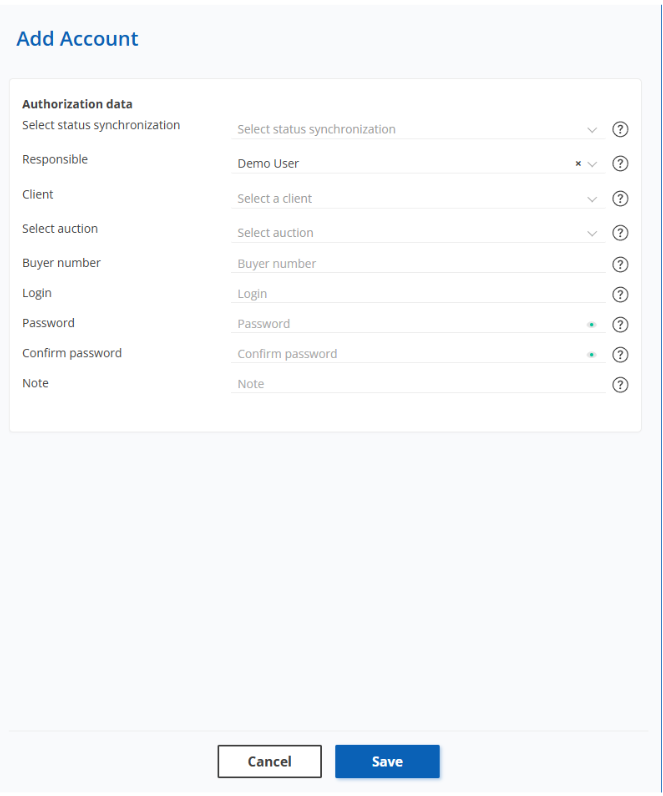 Figure 2 - Window “Add contact”
To check the account credentials, select the desired entry in the table and click the button  (Figure 1, Pointer 2). A window will open where you need to click the button “Edit” (Figure 3, Pointer 1) and then click the “Test account credentials” button (Figure 3, Pointer 2).
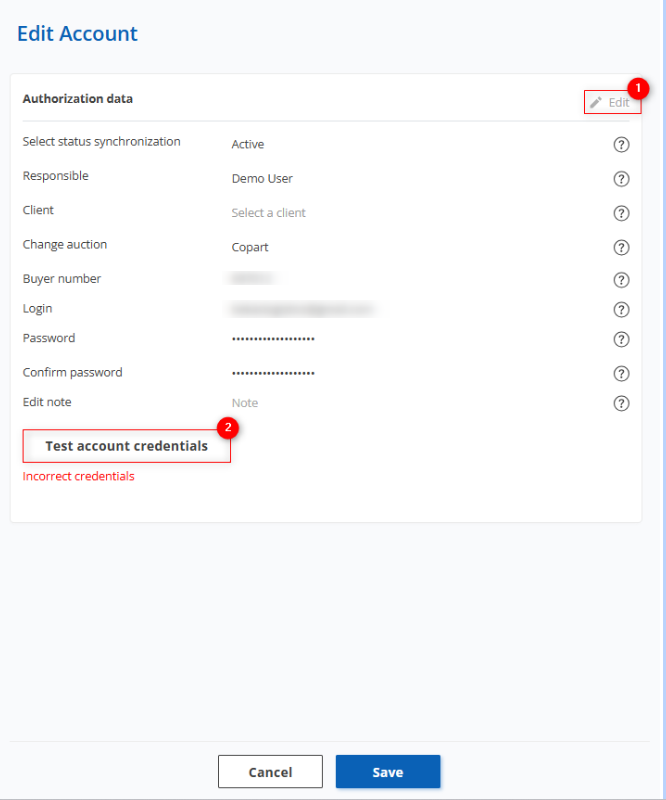 Figure 3 – “Edit account” window
When you click this button, the system will check for the existence of the account on the corresponding auction. If the entered data is incorrect and the account is not found, a message will appear: “Incorrect credentials”.
After the accounts are added, the system will automatically activate synchronization, and all purchased lots will start appearing on the “Auctions” page (Figure 4).
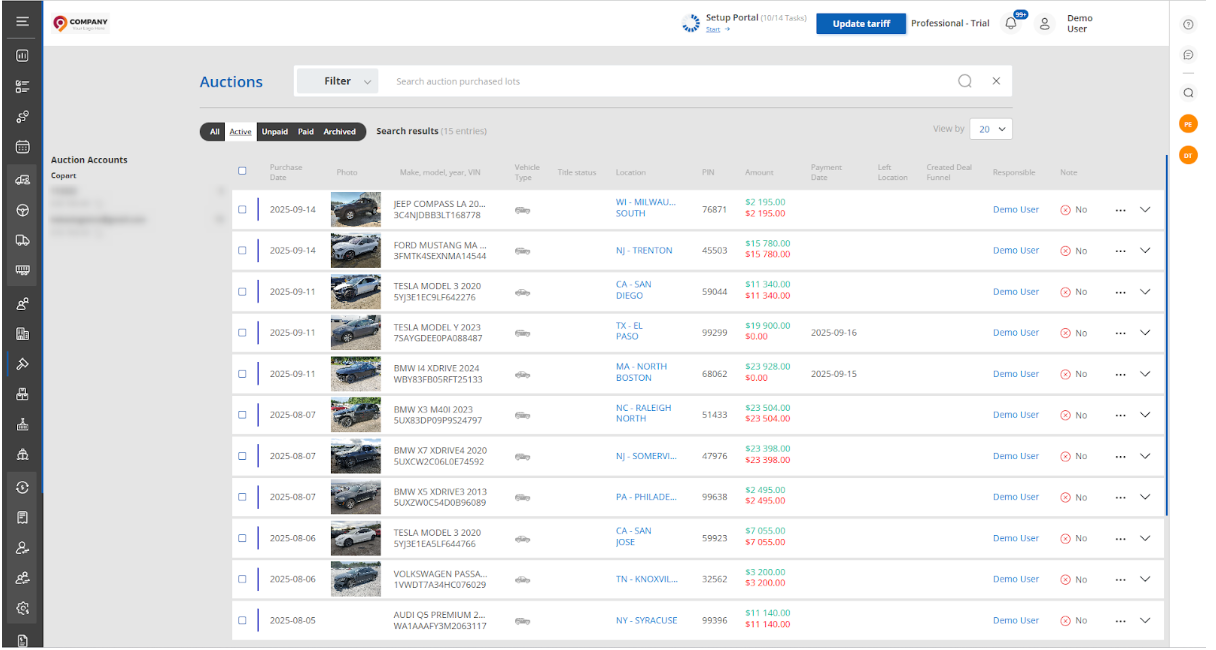 Figure 4 – “Auctions” page